怎么打开Windows Powershell ISE?
1、点开电脑开始菜单。

2、点击任意一个列表中的字母。
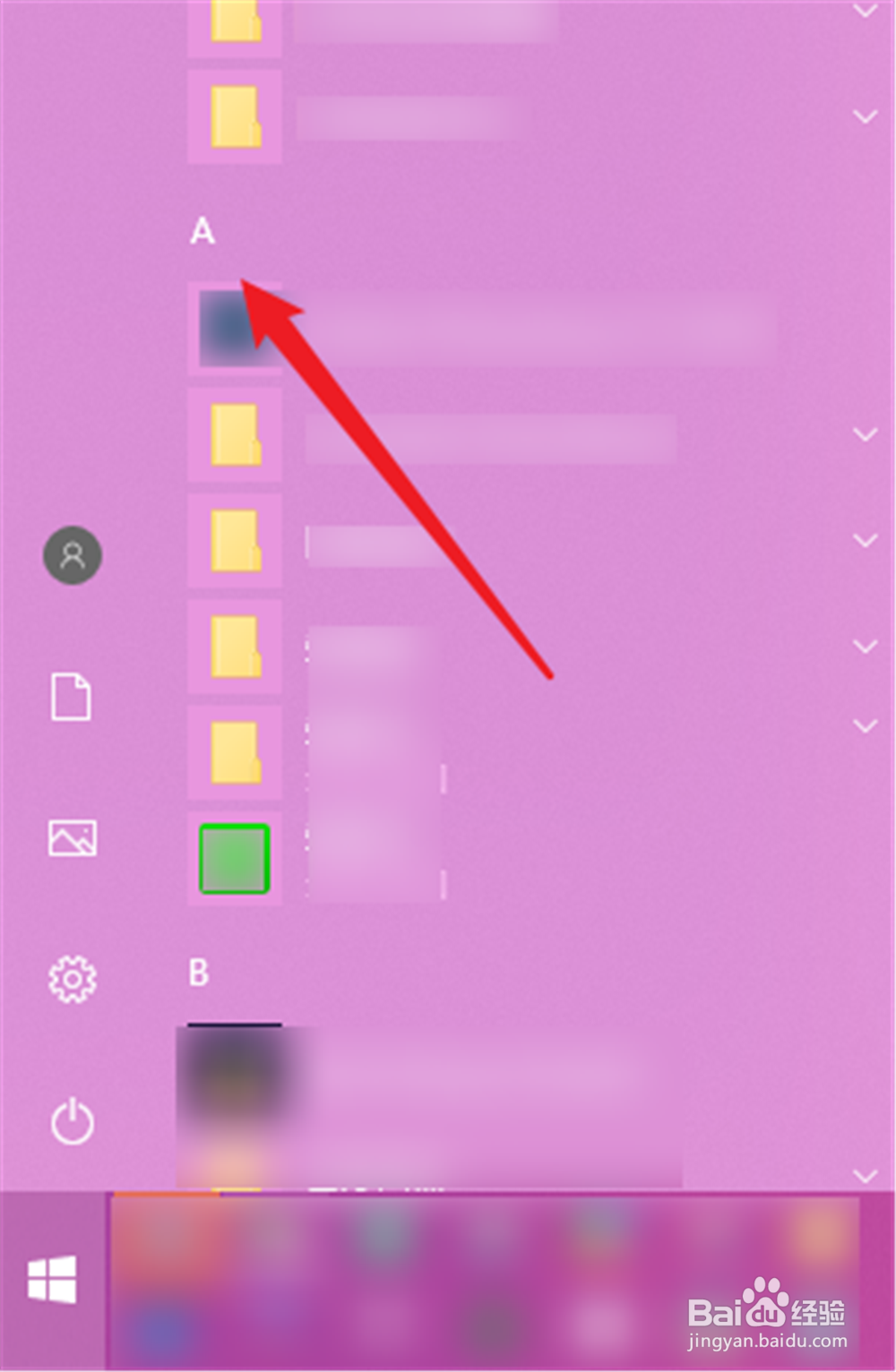
3、然后选择“W”打开该字母开头的项目。

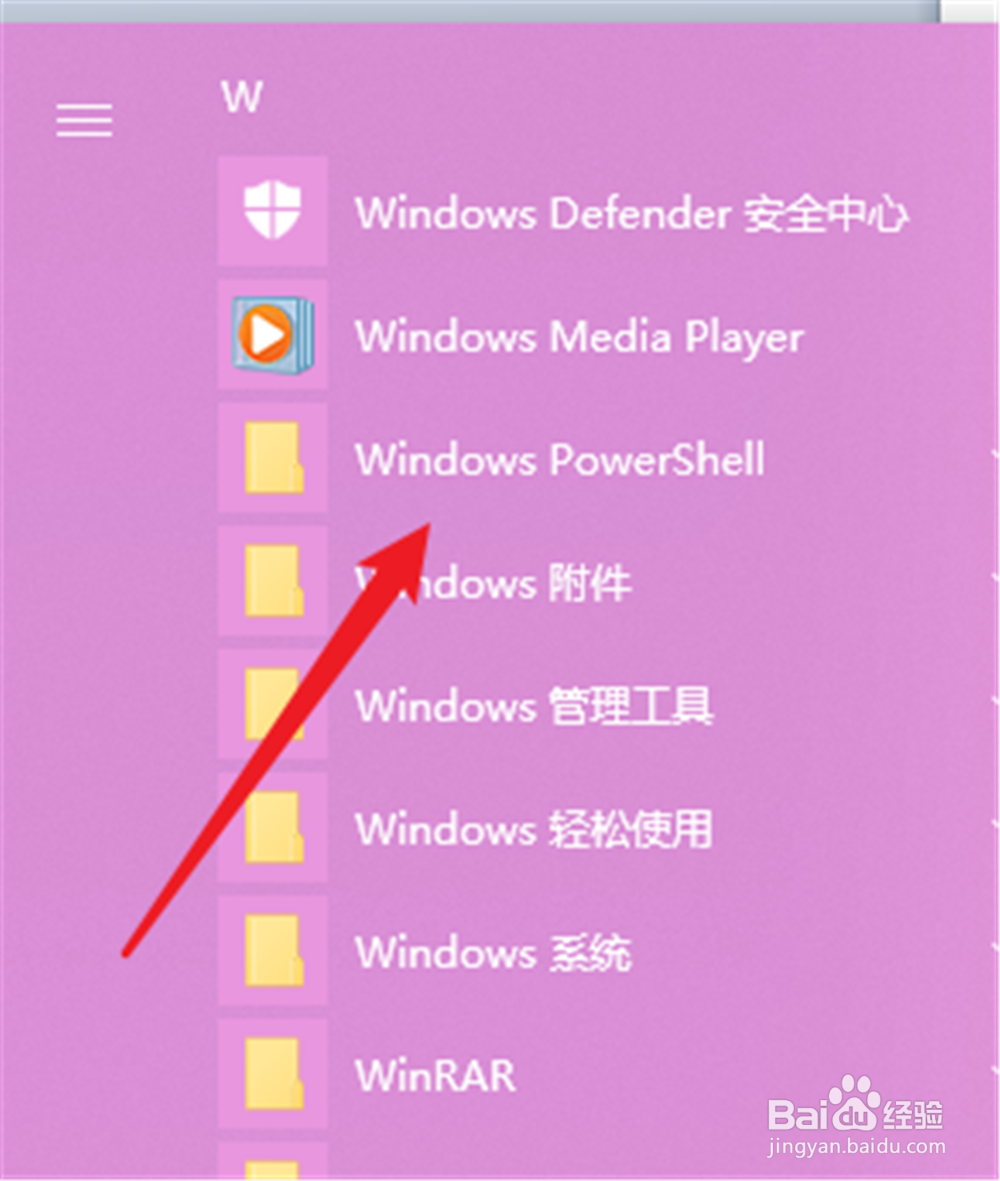
4、把其中的“Windows Powershell ”展开。
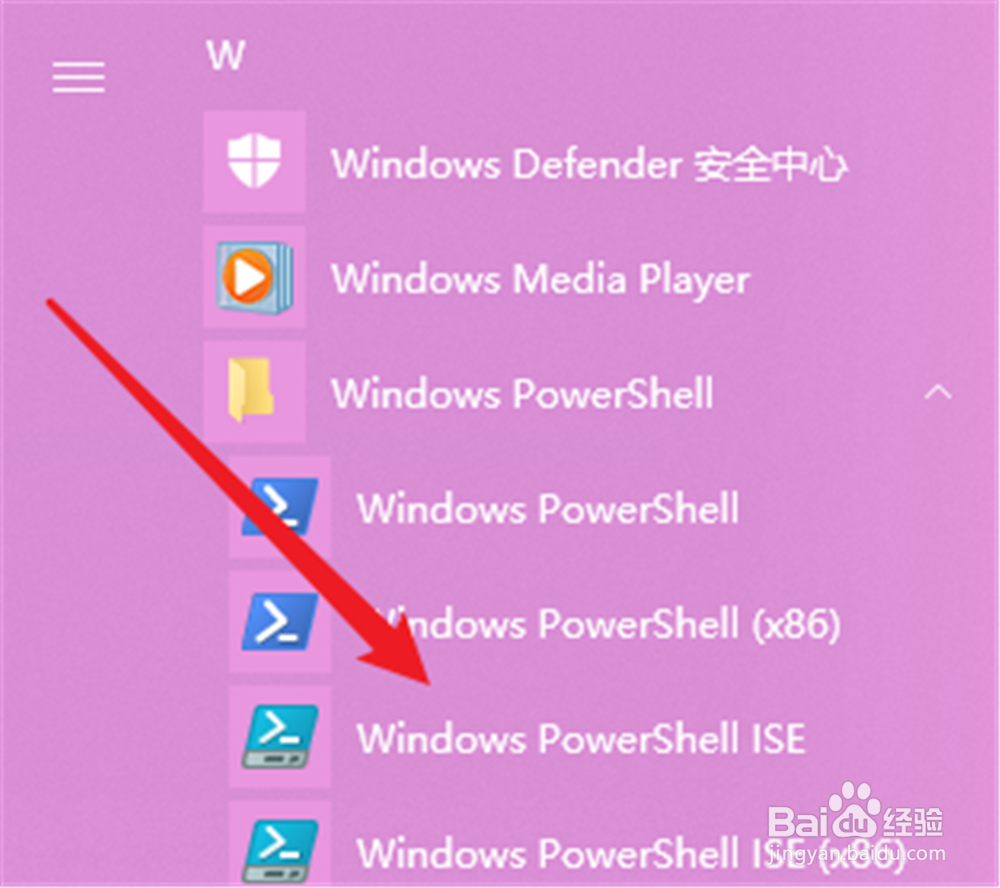
5、就能看到“Windows Powershell ISE”,打开。
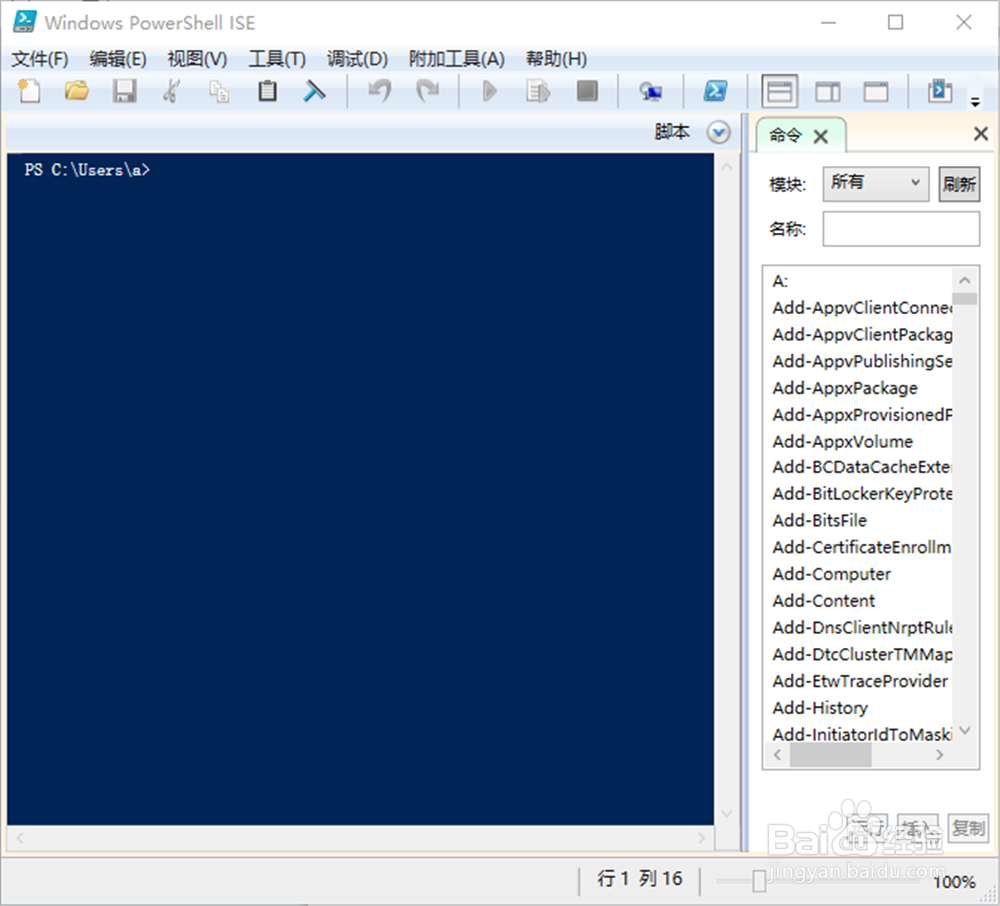
6、即可打开Windows Powershell ISE界面。
1、打开开始菜单;
2、点击列表里面的任意字母;
3、点击W打开;
4、展开Windows Powershell文件夹;
5、找到“Windows Powershell ISE”打开;
6、即可将进入界面。
阅读量:181
阅读量:24
阅读量:123
阅读量:111
阅读量:175